New in SavedSafe 2.0
Copy new files to your backup drive
Plug your SavedSafe backup drive in again, and add only what is new.
Use this whenSavedSafe's first screen says "Your backup drive is plugged in" and shows a "Copy new files" button.
New photos keep coming. Once SavedSafe has copied your files to a USB drive, it recognizes that drive whenever you plug it in, and can add your new files to it with one click.
Steps
- Plug in the USB drive SavedSafe copied to before.
- Open SavedSafe.
- Click "Copy new files".
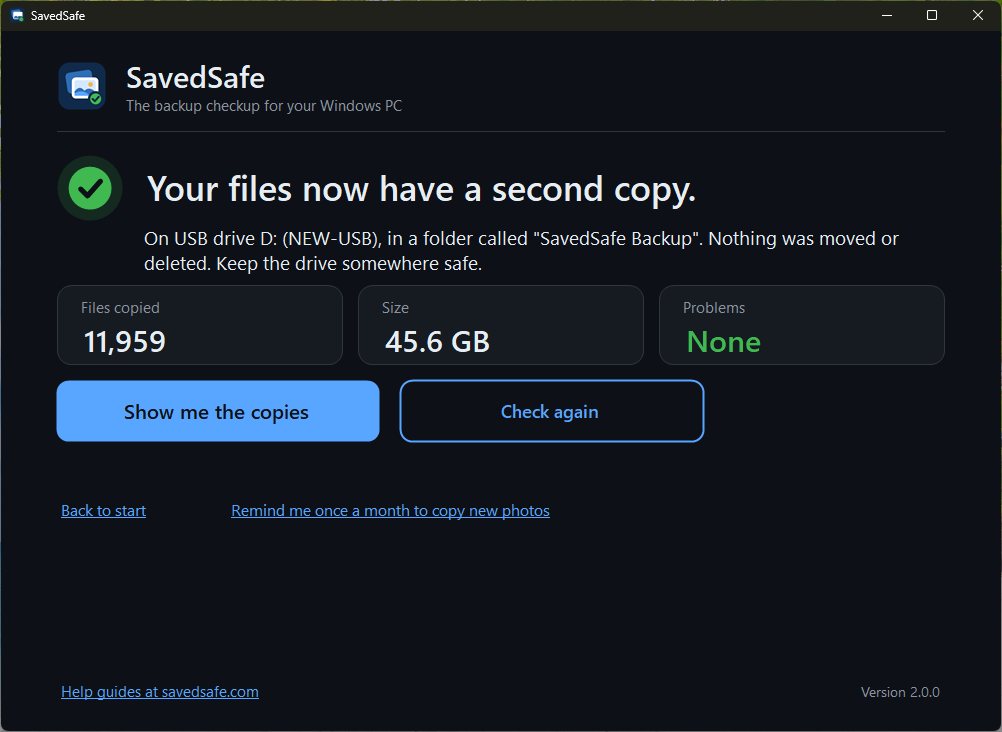
- Wait until SavedSafe says it is done. If everything is already on the drive, it says "Nothing new to copy."
Good to know
- Files that are already on the drive are skipped. Nothing on the drive is overwritten.
- If you changed a document since the last copy, the new version is saved next to the old one with a number, like "Budget (2).xlsx".
- Want a reminder? SavedSafe can remind you once a month. See Turn the monthly reminder on or off.
Questions? Email [email protected]. A real person answers.
savedsafe.com/help/copy-new-files/→