New in SavedSafe 2.0
Copy your files to a USB drive
Let SavedSafe copy the photos and files that have no backup to a USB drive, with one click.
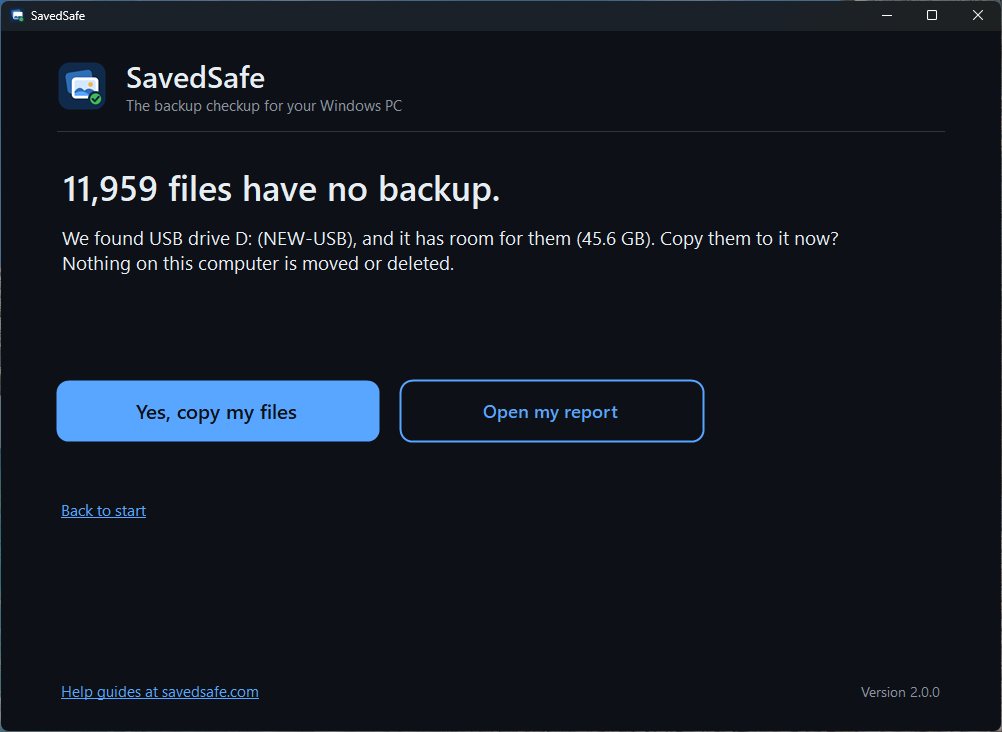
Use this whenSavedSafe says "We found USB drive… Copy them to it now?"
SavedSafe can copy the photos, videos, and documents that have no backup to a USB drive for you. It only adds copies. Nothing on your computer is moved, changed, or deleted, and nothing already on the drive is overwritten.
Steps
- Plug a USB drive into the computer.
- Open SavedSafe and click "Check my computer".
- When SavedSafe asks, click "Yes, copy my files". If the drive only has room for some of them, SavedSafe tells you what will be left out, and the button says "Yes, copy them".
- Leave the drive plugged in until SavedSafe says "Your files now have a second copy." You can keep using your computer while it copies.
- Click "Show me the copies" to see them.
Where your copies go
- On the USB drive, in a folder called "SavedSafe Backup".
- Photos are sorted by year, then month, for example 2024, then 03 - March.
- Videos are all in one folder.
- Documents are sorted into PDFs, Word, Excel, and Other documents.
- Start Here.txt explains what is in the folder and how to get a file back.
- Copy list.csv opens in Excel and shows where each file came from.
Good to know
- Plug the same drive in again later and SavedSafe adds only the new files. See Copy new files to your backup drive.
- Changed your mind? Click "Stop copying". The files copied so far stay on the drive.
- If the drive is too small, SavedSafe tells you before it copies anything, and tells you what size to buy. See What USB drive to buy.
- Some drives cannot hold a single file bigger than 4 GB. If you have very large videos, SavedSafe says so before it starts and skips just those.
- Keep the drive somewhere safe, away from the computer if you can.
Questions? Email [email protected]. A real person answers.
savedsafe.com/help/copy-to-usb/→